Running Local LLMs on Intel GPUs
Table of contents
I try to have a pragmatic view on Large Language Models (LLMs), which I summarized in a previous post. In any case, I am very much interested in the technology and, long story short, bought an Intel Arc Pro B60 GPU for my home server. It is “an extremely well-balanced workstation card that performs well in classic CAD environments as well as in modern AI and content creation scenarios” as Igor Wallossek puts it in his very detailed and thorough review. For currently around 800€, it is expensive but one of the cheapest graphic cards with 24 GB of VRAM, which is important for generative AI applications. I have different applications in mind like web desktops that can handle, e.g., video editing and gaming, but testing to run LLMs fully local was the first thing on my list.
It needs to be noted, though, that apart from hardware specifications the software support is crucial for running AI applications, and Nvidia is still pretty much the industry standard when it comes to this. Tinkering and running into problems can be expected when not using an Nvidia card. For me, this was part of the reason to choose the Intel card. 😁
Why run LLMs locally?
One of the big problems I have with LLMs as used via ChatGPT, Copilot, Gemini, Claude, … is that they are incredible data gathering machines, something that I wrote a bit more about earlier. It is all too easy to end up pasting sensitive data into the interface of a friendly chatbot like when asking for a quick summary of a text. Furthermore, I would claim that your chat logs tell a lot about you personally, not just what you are working on but also what you know and how you think. It does not feel great to share this kind of data.
To some extent, this can be mitigated, e.g., by paying for an LLM API service which allows you to use your own applications for chatting (like Jan.ai or Open WebUI, and enabling Zero Data Retention like supported by OpenRouter). Even better, use a national service like Berget AI in Sweden. The bottom line, however, is that you need to trust these services.
Privacy aside, it is also fun to play with the technology. 😊
First Steps
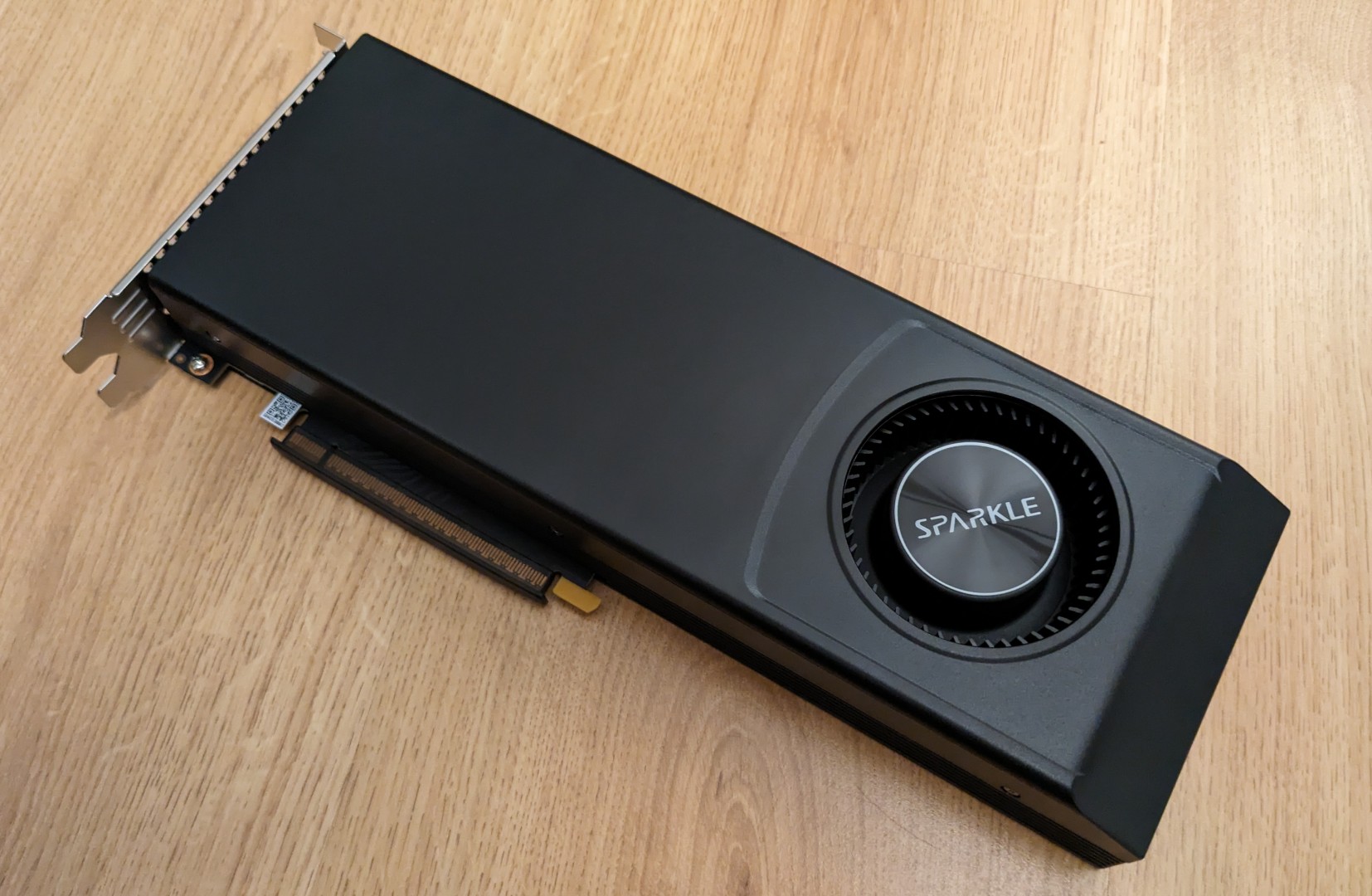
Sparkle Arc Pro B60 Blower 24GB
It has been a while since I installed a graphics card, but unpacking and mounting it was not very adventurous. At first boot, it became directly clear that this version of the B60 (Sparkle Arc Pro B60 Blower 24GB) is quite noisy, and I will get back to fan control issues further below.
I am using it under Linux and it did not seem to properly initialise under Debian 13’s standard kernel (6.12). So I added the backports package repository to install the 6.17 kernel and more recent firmware. After that, the card showed up fine and worked perfectly in first tests. There are no separate drivers needed like for Nvidia cards (which at least seem to be transitioning towards open source drivers). The Intel drivers are open source and included in the recent Linux kernel and we can directly move on to running our first local LLM.
Serving LLMs
As mentioned, Nvidia is still the industry standard and virtually any AI application is optimized for their cards and software stack. Therefore, there is a lot of documentation out there and the latest LLMs work after a few commands. AMD seems to have come a long way as well with their “Lemonade” software.
As I mentioned earlier, I was aware that running LLMs on an Intel GPU might require tinkering. Their latest software stack “Project Battlematrix” was only presented in May 2025, and their August 2025 update points to the 1.0 release of “LLM Scaler”. So this is where I started, and when sticking to the supported models, a single (admittedly long) command is needed to get an LLM up and running.
Apart from a recent Linux kernel, you need to have Docker installed (under Debian, this is the docker.io package).
Further, your user needs to be in the docker, render, and video groups.
For example, to start OpenAI’s gpt-oss-20b you can run:
$ docker run -it --rm \
  --name vllm_server \
  --device /dev/dri/renderD128:/dev/dri/renderD128 \
  --device /dev/dri/card0:/dev/dri/card0 \
  --mount type=bind,source=/dev/dri/by-path/pci-0000:03:00.0-card,target=/dev/dri/by-path/pci-0000:03:00.0-card \
  --mount type=bind,source=/dev/dri/by-path/pci-0000:03:00.0-render,target=/dev/dri/by-path/pci-0000:03:00.0-render \
  -v ~/models:/llm/models \
  -e VLLM_ALLOW_LONG_MAX_MODEL_LEN=1 \
  -e VLLM_WORKER_MULTIPROC_METHOD=spawn \
  -e VLLM_OFFLOAD_WEIGHTS_BEFORE_QUANT=1 \
  --shm-size=32gb \
  -p 8000:8000 \
  --entrypoint /bin/bash \
  intel/llm-scaler-vllm:1.2 \
  -c "source /opt/intel/oneapi/setvars.sh --force && python3 -m vllm.entrypoints.openai.api_server \
      --model openai/gpt-oss-20b --served-model-name gpt-oss-20b --enforce-eager --port 8000 \
      --host 0.0.0.0 --gpu-memory-util=0.95 --block-size 64 -tp=1"
The command will download the ca. 39 GB big repository of the model.
The --device and --mount parameters assume that the Intel B60 is available at the given locations, which can differ from system to system.
In this case it will complain with something like XPU device count is zero!.
--gpu-memory-util=0.95 limits the amount of memory used for the LLM (95% in this case).
In my system, the B60 is not attached to a monitor or running anything else but the LLM.
Therefore, allocating 95% works fine, but gpu-memory-util might need to be lowered in other setups (it might also change for different versions of the container).
In this case, you might need to add the --max-model-len parameter as well which limits the total amount of tokens processed per call.
The value is given in the docker container’s log which will contain a line like “GPU KV cache size: 139,584 tokens”.
The command further assumes that the folder ~/models exists (models inside your user’s home directory).
It is advisable to download and store your models, e.g., openai/gpt-oss-20b, there to and change the model argument (--model) to that location so you do not download it every time you start the container.
After downloading the model, it will take a few minutes to load it onto the GPU. When successful, the LLM will be available via an OpenAI-compatible API on port 8000. The provided API has nothing to do with the model itself, but providing an OpenAI API endpoint has become standard. You can test it, e.g., using the following command:
$ curl -X POST 127.0.0.1:8000/v1/chat/completions \
  -H "Content-Type: application/json" \
  -d '{ "messages": [{"role": "user", "content": "Test!"}] }'
Which will create an output like this:
{
  "id": "chatcmpl-bbeb031cee4049e2bf614ea8842afddc",
  "object": "chat.completion",
  "created": 1768592410,
  "model": "gpt-oss-20b",
  "choices": [
    {
      "index": 0,
      "message": {
        "role": "assistant",
        "content": "Hello! 👋 Everything looks good on my end—how can I help you today?",
        "refusal": null,
        "annotations": null,
        "audio": null,
        "function_call": null,
        "tool_calls": [],
        "reasoning_content": "The user says \"Test!\" Likely expecting a quick reply or something. I should respond to test. Could respond with a confirmation or something. Provide a brief test reply."
      },
      // ... shortened ...
}
Calling the API directly is not the most convenient way of interacting with an LLM, of course. The provided OpenAI API makes it straightforward to use it via the mentioned Jan.ai or Open WebUI, just like LLMs provided by API services like from Berget AI, Mistral or OpenRouter. Both applications are chat oriented. Jan.ai is a desktop application, whereas Open WebUI is very similar to ChatGPT and supports multi users.
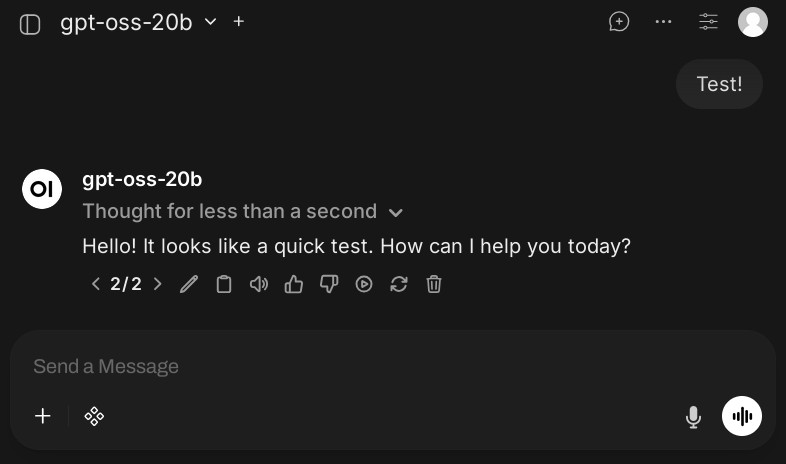
Interacting with the locally running openai/gpt-oss-20b via Open WebUI
I also tried Zed “a minimal code editor crafted for speed and collaboration with humans and AI”, and it worked well to interact with the local LLM for coding (but I do not really like to use it this way). There are great documentation and tutorials out there, so I will not go into detail on applications here. Instead, let us have a quick look at how the Intel Arc Pro B60 performs.
Benchmarking
You might wonder whether running a local LLM would be slow.
When the LLM is up and running in its vllm_server container as describe above, you can run the following command to benchmark it from another terminal:
$ docker exec -it vllm_server bash -c "vllm bench serve \
    --model /llm/models/gpt-oss-20b --dataset-name random --served-model-name gpt-oss-20b \
    --random-input-len=8192 --random-output-len=8192 --ignore-eos --num-prompt 1 \
    --trust_remote_code --backend vllm"
In the given example, a single request with 8192 random input tokens is sent that expects 8192 tokens output. According to this benchmark, generating a token takes 16.57 ms on average which means that ca. 60.35 tokens are generated per second (excluding first token, full benchmark results below). This is roughly 15 times faster than human reading speed (ca. 150 to 200 words per minute). Popular LLMs on OpenRouter seem to lie around 40 tokens per second (e.g., Claude Sonnet 4.5), but provide higher-quality results, of course. So speed-wise, there are no issues for a single user.
You can also test concurrent requests.
The following command sends a burst of 50 requests (--request-rate inf, 1024 tokens input / output):
$ vllm bench serve \
    --model /llm/models/gpt-oss-20b --dataset-name random --served-model-name gpt-oss-20b \
    --random-input-len=1024 --random-output-len=1024 --ignore-eos --num-prompt 50 \
    --trust_remote_code --request-rate inf --backend vllm
This scenario gives a data point for the maximum throughput the Arc Pro B60 can achieve with the current software stack, 967.15 tokens per second. If we assume that each request belongs to a different user, users would need to wait on average 4.89 seconds for their request to start processing (Mean TTFT) and then see 21.44 tokens per second being generated (still roughly 5 times faster than human reading).
To simulate a more realistic steady stream of users you can limit the request rate, e.g., to 1 request per second using --request-rate 1.
In any case, I personally see no issues in speed, but what about the quality of results?
Detailed benchmark results (click to expand):
intel/llm-scaler-vllm:1.2, 1 request
$ vllm bench serve \
    --model /llm/models/gpt-oss-20b --dataset-name random --served-model-name gpt-oss-20b \
    --random-input-len=8192 --random-output-len=8192 --ignore-eos --num-prompt 1 \
    --trust_remote_code --request-rate inf --backend vllm

...

============ Serving Benchmark Result ============
Successful requests:                     1
Benchmark duration (s):                  135.80
Total input tokens:                      8192
Total generated tokens:                  8192
Request throughput (req/s):              0.01
Output token throughput (tok/s):         60.32
Total Token throughput (tok/s):          120.65
---------------Time to First Token----------------
Mean TTFT (ms):                          55.90
Median TTFT (ms):                        55.90
P99 TTFT (ms):                           55.90
-----Time per Output Token (excl. 1st token)------
Mean TPOT (ms):                          16.57
Median TPOT (ms):                        16.57
P99 TPOT (ms):                           16.57
---------------Inter-token Latency----------------
Mean ITL (ms):                           16.57
Median ITL (ms):                         16.51
P99 ITL (ms):                            17.71
==================================================
intel/llm-scaler-vllm:1.2, 50 requests, request-rate inf
$ vllm bench serve \
    --model /llm/models/gpt-oss-20b --dataset-name random --served-model-name gpt-oss-20b \
    --random-input-len=1024 --random-output-len=1024 --ignore-eos --num-prompt 50 \
    --trust_remote_code --request-rate inf --backend vllm

...

============ Serving Benchmark Result ============
Successful requests:                     50
Benchmark duration (s):                  52.94
Total input tokens:                      51200
Total generated tokens:                  51200
Request throughput (req/s):              0.94
Output token throughput (tok/s):         967.15
Total Token throughput (tok/s):          1934.31
---------------Time to First Token----------------
Mean TTFT (ms):                          4894.00
Median TTFT (ms):                        4850.09
P99 TTFT (ms):                           9506.49
-----Time per Output Token (excl. 1st token)------
Mean TPOT (ms):                          46.64
Median TPOT (ms):                        46.71
P99 TPOT (ms):                           50.76
---------------Inter-token Latency----------------
Mean ITL (ms):                           46.64
Median ITL (ms):                         43.09
P99 ITL (ms):                            368.57
==================================================
intel/llm-scaler-vllm:1.2, 50 requests, request-rate 1
$ vllm bench serve \
    --model /llm/models/gpt-oss-20b --dataset-name random --served-model-name gpt-oss-20b \
    --random-input-len=1024 --random-output-len=1024 --ignore-eos --num-prompt 50 \
    --trust_remote_code --request-rate 1 --backend vllm

...

============ Serving Benchmark Result ============
Successful requests:                     50
Request rate configured (RPS):           1.00
Benchmark duration (s):                  83.34
Total input tokens:                      51200
Total generated tokens:                  51200
Request throughput (req/s):              0.60
Output token throughput (tok/s):         614.33
Total Token throughput (tok/s):          1228.66
---------------Time to First Token----------------
Mean TTFT (ms):                          82.46
Median TTFT (ms):                        81.53
P99 TTFT (ms):                           122.06
-----Time per Output Token (excl. 1st token)------
Mean TPOT (ms):                          35.22
Median TPOT (ms):                        36.22
P99 TPOT (ms):                           38.27
---------------Inter-token Latency----------------
Mean ITL (ms):                           35.22
Median ITL (ms):                         36.46
P99 ITL (ms):                            66.33
==================================================
How Usable Is It?
My first attempts with running a local LLM were more than two years ago with the Llama and Llama 2 models (Llama 2 release in July 2023).
Compared to this the quality of outputs has improved considerably and the model can handle much bigger contexts.
The 128,000 token context length of gpt-oss-20b corresponds to roughly 96,000 words or 300 pages of text, while Llama 2 supported a 4,096 token context.
At the same time, it is still what it is: a stochastic model where results vary and outputs regularly contain made up garbage (like the big models but more frequent).
It is still too early for me to say how usable it really is for my use cases, so let’s have a look at a few benchmarks on output quality.
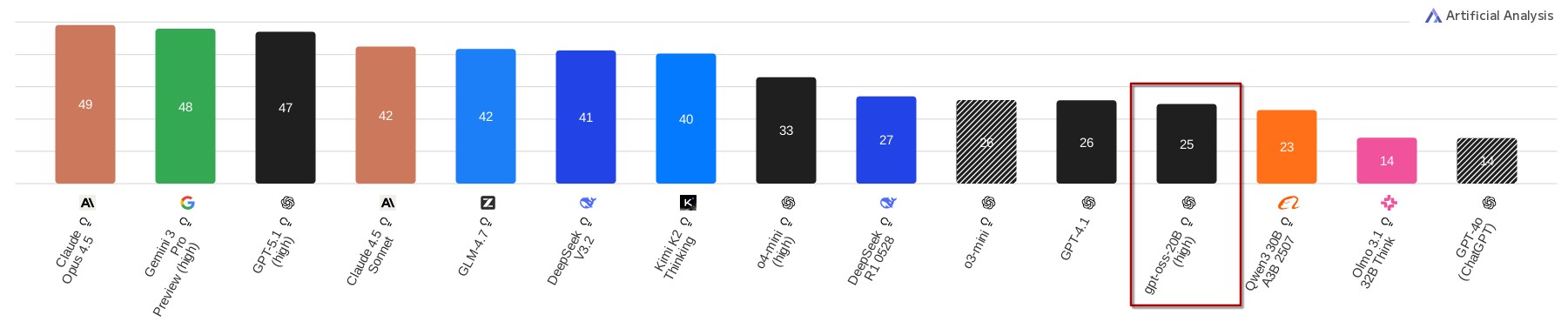
There is a growing number of benchmarks for LLMs, several of them are aggregated by the Artificial Analysis Index.
According to this index, gpt-oss-20b scores better than one of the earlier ChatGPT versions GPT-4o and comparable to GPT-4.1 and o3-mini.
So it does seem like local LLMs have come a long way.
However, gpt-oss-20b scores much worse than the recent “frontier” models.
This is not surprising, as these frontier models require 20 times or more of the resources that gpt-oss-20b needs.
There is also a “Coding Index”, where gpt-oss-20b receives the same score as o3-mini but is again far off frontier models.
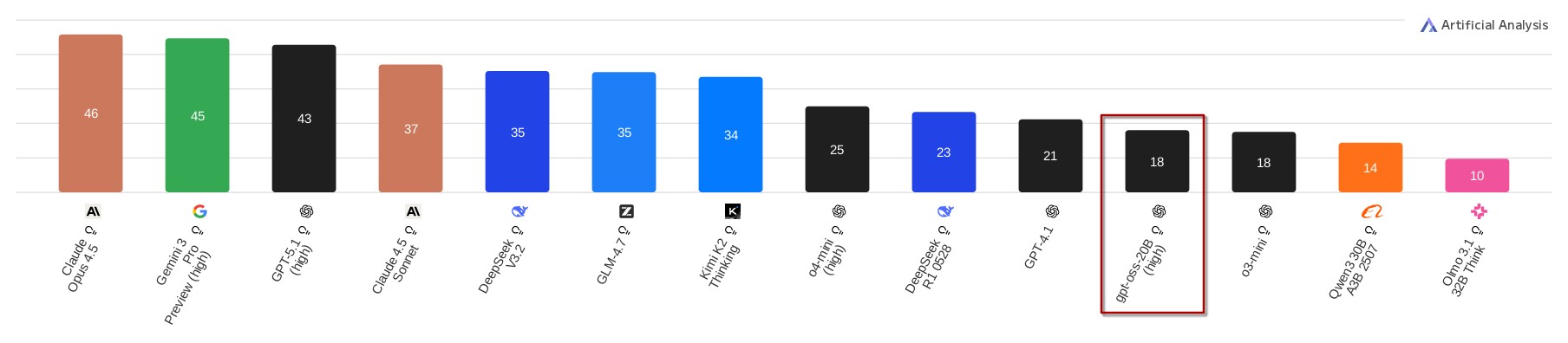
The results on output quality are not specific to the Intel Arc Pro B60 and will be the same on any GPU that can run the gpt-oss-20b model.
It gives an impression of what the B60 is capable of in terms of serving LLMs, however.
gpt-oss-20b is one of the latest models small enough to run on the 24 GB of VRAM of the B60 without limitations (full context) or modifications, and straight-forward to run on the Intel stack.
Fan Control Issues and Workaround
As mentioned in the beginning of this post, the “Sparkle Arc Pro B60 Blower” that I got is really noisy. There seem to be fan control issues that persist even after updating the firmware or trying a newer version of the Intel software stack (as mentioned further below). In general, the fans spin faster than what they need to, but more annoyingly the temperature reported by the GPU consistently gets stuck at the end of serving a prompt. This leads to the already noisy fan spinning at high speed despite the GPU being idle.
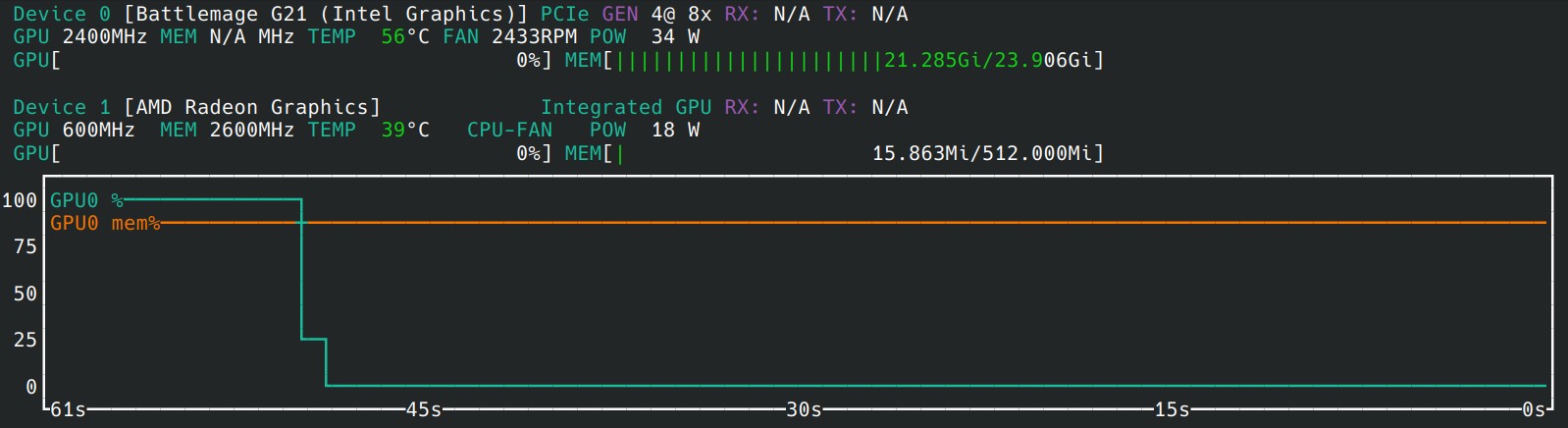
Temperature stuck at unreasonable 56°C and fans spinning at more than 2400 RPM, despite B60 (Device 0) idle for ca. 50 seconds.
So far, I did not find a fix for this issue. My current workaround is to periodically request a single token from the LLM like this:
$ curl -X POST 127.0.0.1:8000/v1/chat/completions \
  -H "Content-Type: application/json" \
  -d '{ "messages": [{"role": "user", "content": "Test!"}], "max_tokens": 1 }'
I currently run this command every 5 minutes via a systemd timer. This triggers the GPU to update its reported temperature, and the fans to spin down when to GPU was idle.
If have seen this problem reported in several channels, so I hope it will be fully resolved soon.
Software Status
For this post, I used the latest release version of LLM Scaler (llm-scaler-vllm PV release 1.2), as it is referred to by Intel and seems to be the officially supported way. vLLM which is the inference engine inside LLM Scaler, i.e., the piece of software that actually runs and serves the LLM, lags several months and release versions behind, though. vLLM v0.14.0 was just released but LLM Scaler is based on v0.10.2 from more than three months ago. vLLM and LLM development in general go rapidly these days, a three months lag means that you miss out on support for several models, features, and performance optimizations. There is a separate Intel project “AI Containers”, which provides a container for vLLM v0.11.1, and works similarly well. I suppose it does not contain the same extensions for using multiple GPUs that LLM Scaler has, but it is difficult to find clarifying documentation.
In any case, vLLM appears to be the way forward for LLMs on Intel GPUs. There are other popular inference engines but they are not supported (anymore). I am not sure why Intel’s AI container for vLLM currently lags two months (and also several versions) behind the vLLM project, though.
Just yesterday I found out that the vLLM project itself contains instructions for building a docker image for Intel GPUs, which allows you to run the latest version. First tests show a 30% performance increase (78.25 tokens per second) in the single user use case (results below) and it supports several new models. So it looks very interesting for both performance and features to run the latest version.
I would assume, however, that there is a reason why running the latest vLLM version directly is not the official way. I just have not found out why, yet, and would like to see a few lines of documentation on this.
Detailed benchmark results (click to expand):
vllm v0.14.0, 1 request
$ vllm bench serve \
    --model /llm/models/gpt-oss-20b --dataset-name random --served-model-name gpt-oss-20b \
    --random-input-len=8192 --random-output-len=8192 --ignore-eos --num-prompt 1 \
    --trust_remote_code --request-rate inf --backend vllm

...

============ Serving Benchmark Result ============
Successful requests:                     1
Failed requests:                         0
Benchmark duration (s):                  106.14
Total input tokens:                      8192
Total generated tokens:                  8192
Request throughput (req/s):              0.01
Output token throughput (tok/s):         77.18
Peak output token throughput (tok/s):    80.00
Peak concurrent requests:                1.00
Total token throughput (tok/s):          154.36
---------------Time to First Token----------------
Mean TTFT (ms):                          1465.40
Median TTFT (ms):                        1465.40
P99 TTFT (ms):                           1465.40
-----Time per Output Token (excl. 1st token)------
Mean TPOT (ms):                          12.78
Median TPOT (ms):                        12.78
P99 TPOT (ms):                           12.78
---------------Inter-token Latency----------------
Mean ITL (ms):                           12.78
Median ITL (ms):                         12.78
P99 ITL (ms):                            13.22
==================================================
Conclusion
All in all, I would say that running an LLM locally on the Intel Arc Pro B60 was pretty straightforward. I needed to install a more recent Linux kernel under Debian 13, but apart from that it was pretty much plug and play. The fan control issue is annoying but can be worked around OK.
For this post I stayed with the officially-supported and surprisingly capable gpt-oss-20b, and it gets more messy when testing other configurations than the officially listed ones.
The software situation is pretty unclear currently, but is generally evolving quickly and upstream support within the vLLM project seems like the way to go in the long term when comes to serving LLMs.
Apart from testing the latest vLLM version, I also tested running quantized models which is a way of compressing bigger LLMs to fit into the GPUs VRAM.
I had some success but to what extent it is supported on Intel GPUs is not really clear to me, yet, which makes this a potential topic for another post.
The bottom line is, running capable (but not frontier) LLMs is possible on home servers with limited tinkering. Whether this class of LLMs is usable for you depends on your use case, but you gain full control over your privacy and data.